Server
Blockheads Server hosts multiplayer worlds for you and your friends. It is a free, open-source rewrite of the game’s dedicated server (version 1.7.1), so the game and existing worlds work with it unchanged.
Get it from the releases page.
Desktop app
The easiest way on a computer. Download the app for your system:
| System | File |
|---|---|
| Windows | _x64-setup.exe (arm64 for ARM PCs) |
| macOS | _x64.dmg (Intel) or _aarch64.dmg (Apple Silicon) |
| Linux | .AppImage, .deb or .rpm |
Then:
- Create a world (name, size, expert mode if you like).
- Press Start server.
- Share the address shown in the app with your friends. There is also a QR code for phones.
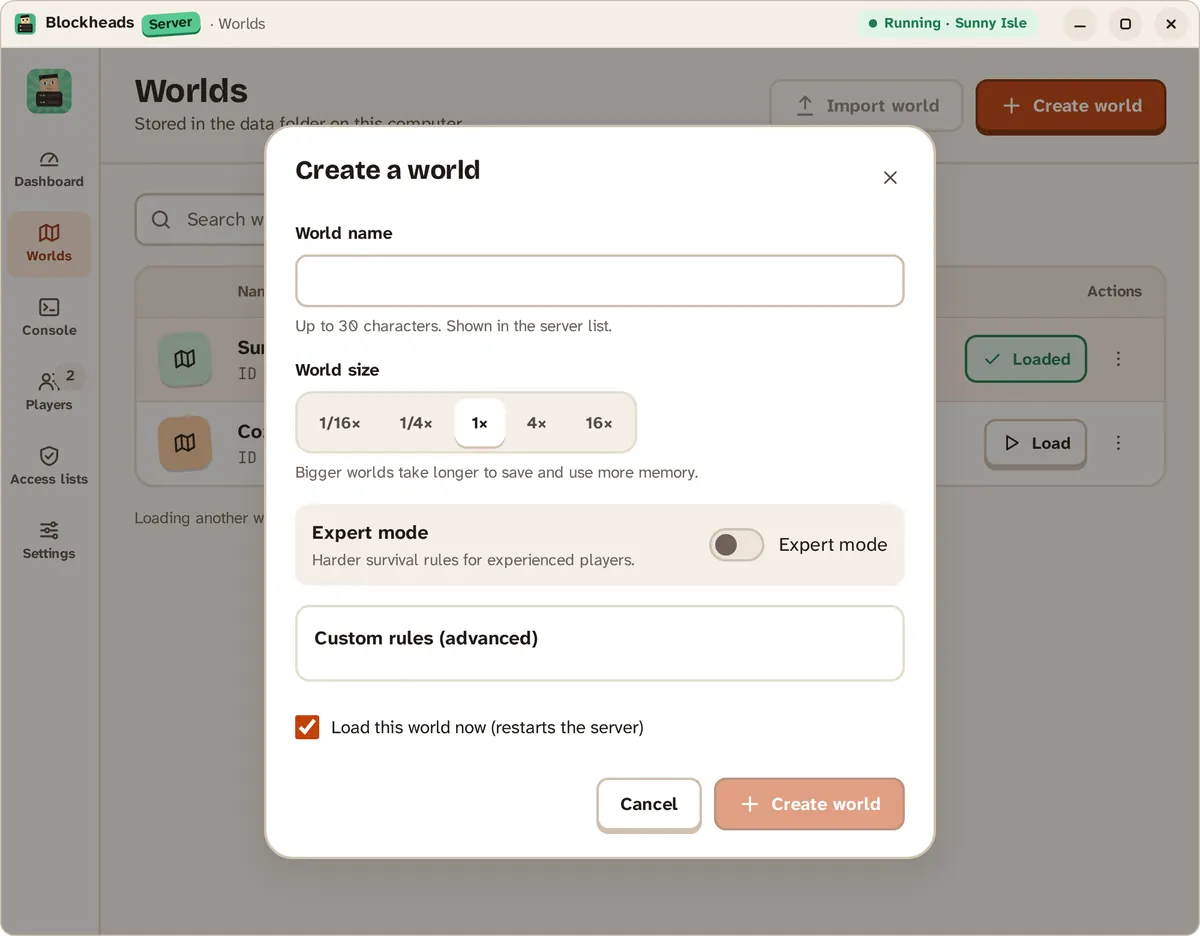
Create a world: a name, a size and, if you like, expert mode.
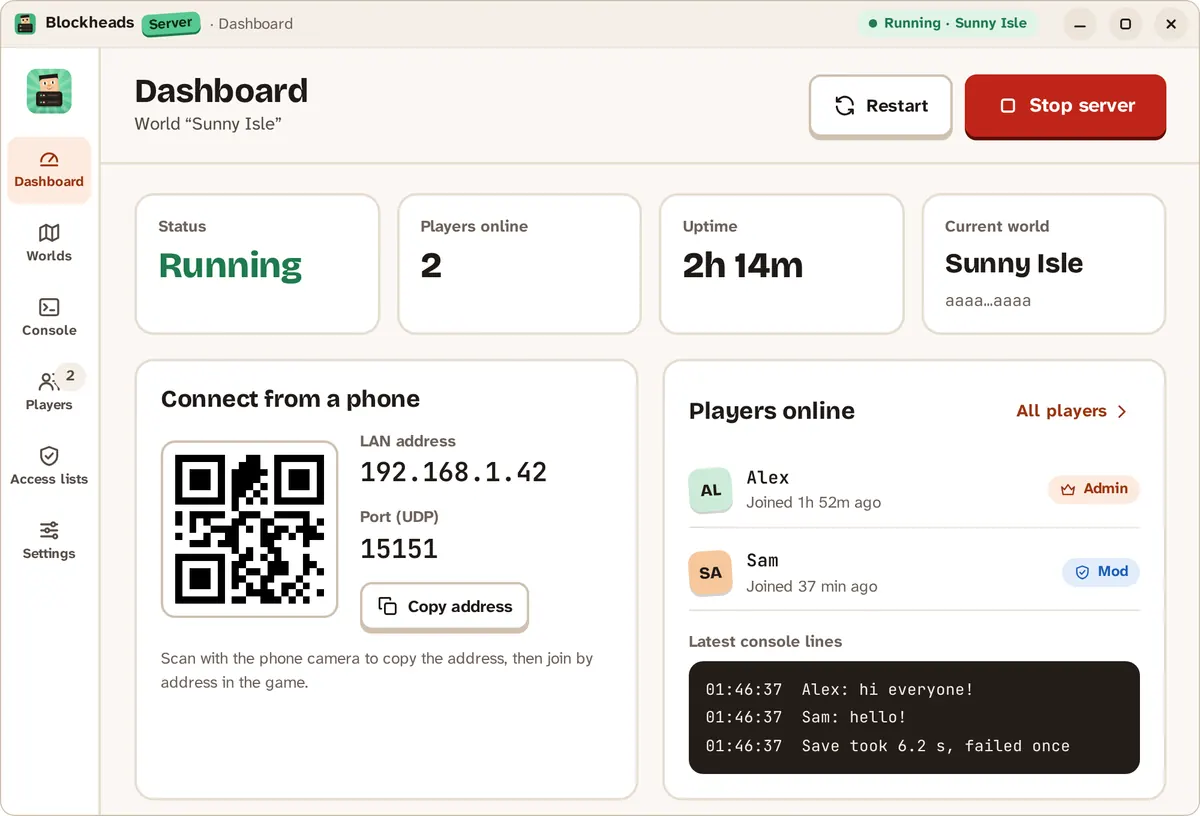
The dashboard shows the address to share, with a QR code for phones.
In the app you can also see the live console and who is online, and edit the admin, mod, white and black lists. Port, max players and password are under Settings.
The name is the player: like a Minecraft offline-mode server, anyone who joins with a known name plays as that player (same blockheads, inventory and rights) from any device, and a login under a name that is already online replaces the old session. Turn Same name from any device off in Settings for the original rule, where a name belongs to its first device. Names are not passwords, so use a password or the whitelist on an open server.
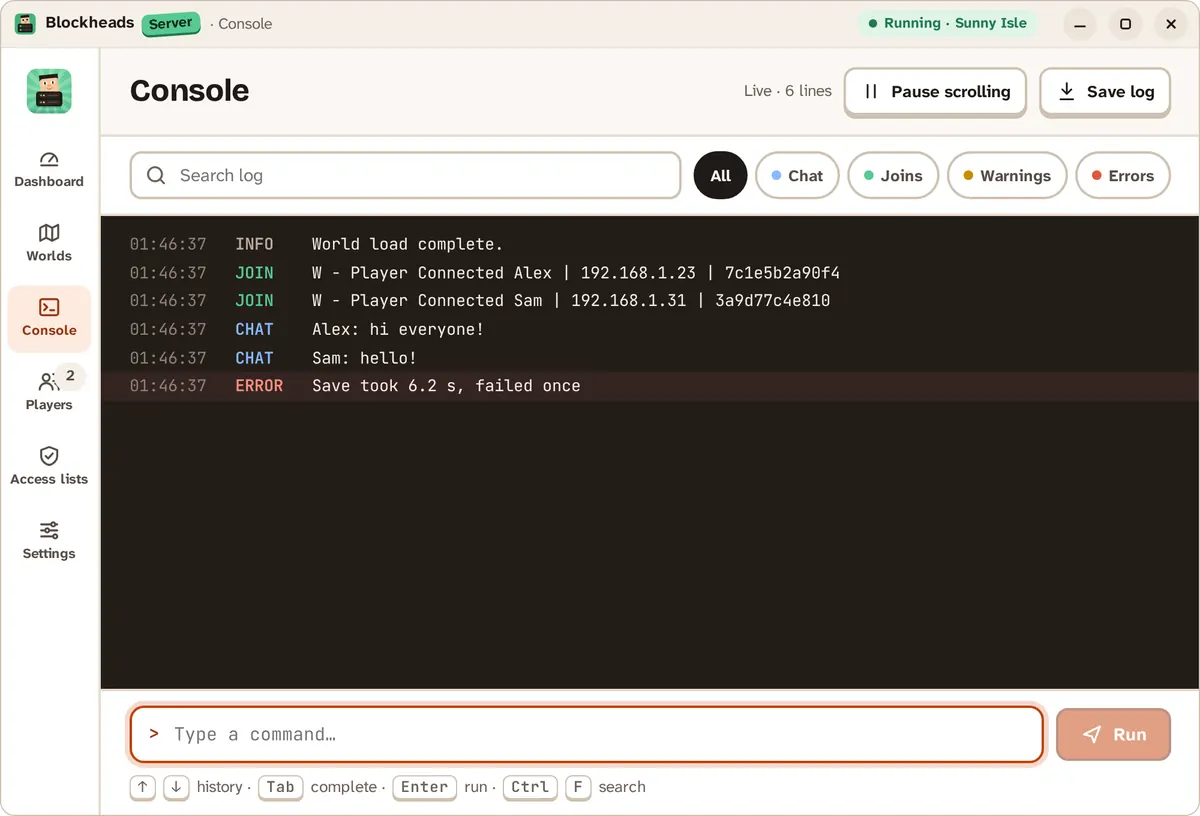
The live console: search the log and type commands.
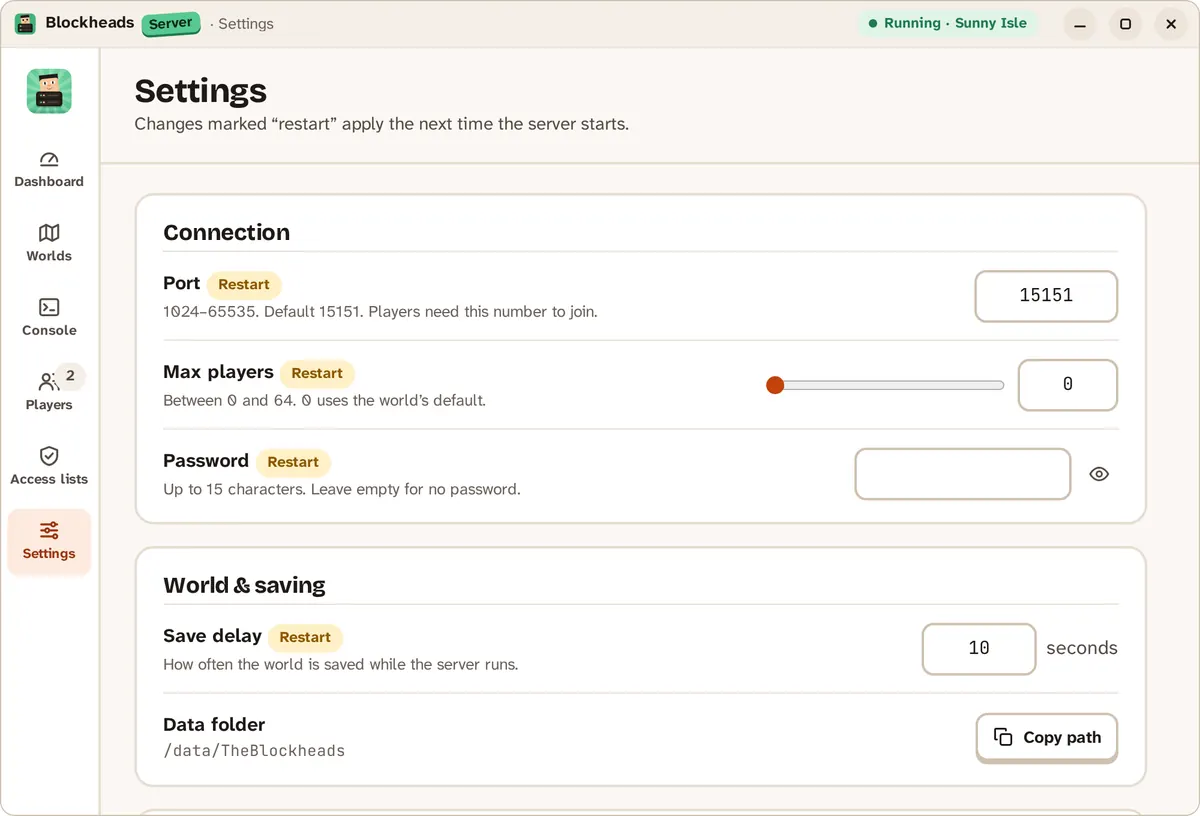
Port, max players and password are under Settings.
Command line
For servers without a screen, or if you prefer a terminal. Download the archive for your system (x86_64, aarch64, or armv7 for a Raspberry Pi), unpack it and run:
./blockheads_server --new world1 --port 15151On Windows (PowerShell):
.\blockheads_server.exe --new world1 --port 15151macOS: The first time, remove the download flag so Gatekeeper allows the program:
xattr -d com.apple.quarantine ./blockheads_serverRun --help for all options. They are the same as in the original server.
Worlds are saved in GNUstep/Library/ApplicationSupport/TheBlockheads in your home folder. Set the BLOCKHEADS_DATA_DIR environment variable to use another folder.
Docker
docker run -i --rm -p 15151:15151/udp -v bh-data:/data \
ghcr.io/blockheads-club/blockheads-server:0.1.1 --new MYWORLD- Keep
-i, so you can type in the console (/stop, chat). - Your worlds are kept in the
bh-datavolume, so they survive updates. - The image works on x86_64 and ARM.
Android
- Download
blockheads-server-…-android.apkand open it to install. Android may ask you to allow installs from your browser. - Create a world and tap Start server. The server keeps running in the background; a notification shows its status.
- Keep the phone charging. If the app asks, turn off battery optimization for it, so Android doesn’t stop it.
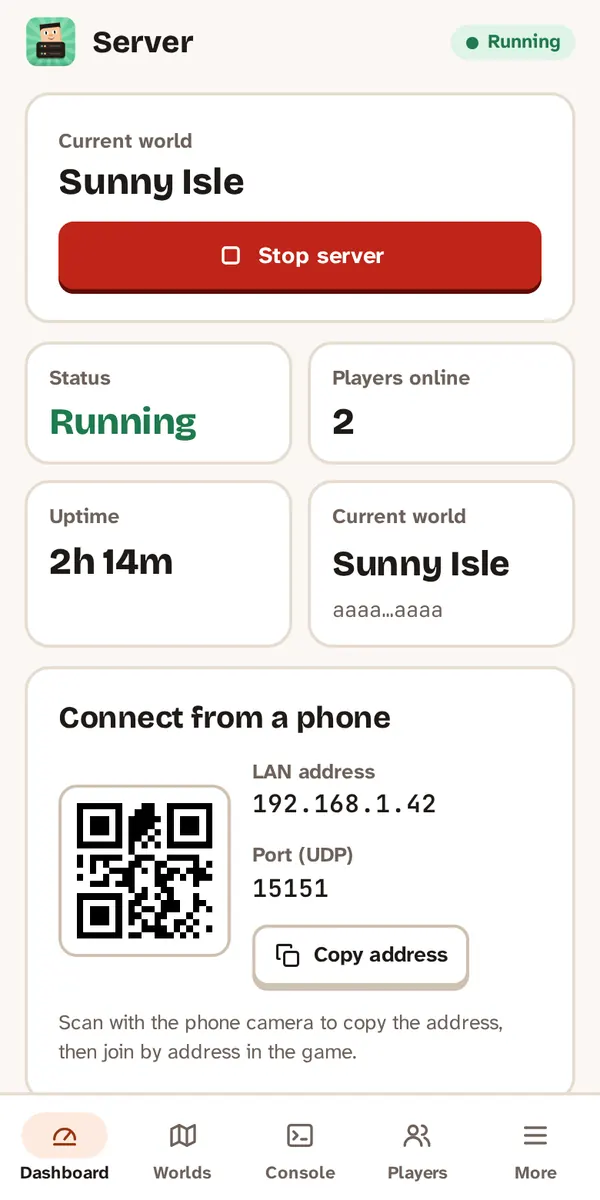
The Android app shows the same dashboard.
Connect from the game
- Start the server and note its address and port, for example
192.168.1.42and port15151. - In the game, open Join World → Advanced… → Online IP/Port…
- Enter the address and port, then join. If the server has a password, the game asks for it.
Android players
Modern Android versions of the game need the welcome popup fix from the Patcher before they can join a server.
LAN (same Wi-Fi)
The easiest way to play together is on the same network:
- The phone (or computer) and the server must be on the same Wi-Fi or network.
- Use the LAN address the server shows (it starts with
192.168.,10.or similar). On a phone, scan the QR code to copy it. - The default port is 15151 (UDP). If friends can’t connect, check the address and port, and allow the server through your firewall.
Playing over the internet?
Forward UDP port 15151 on your router to the server computer and share your public IP. Set a password or use the whitelist first.