Back up your worlds before patching
On Android you must remove the original game before you can install the fixed one — and that deletes the worlds saved on the phone. Here is why, and how to keep them.
What you need
- The Blockheads installed on your phone
- A few minutes before you start patching
1. Know why the original has to go
The Patcher signs the fixed game with your own key, not the original one. Android won’t install an app over another app with a different signature, so the original must be uninstalled first.
WARNING
Worlds stored on that phone are deleted with it. Worlds hosted on servers are not affected.
2. Back up every world in the game
Open the original game on your phone and use its own backup for each world you want to keep. The Patcher can’t do this for you: it never touches your saves.
3. Confirm in the Patcher
Before the Patcher removes the original, it shows Your worlds on this phone will be deleted. Tick My worlds are backed up, or I don’t need them to go on.
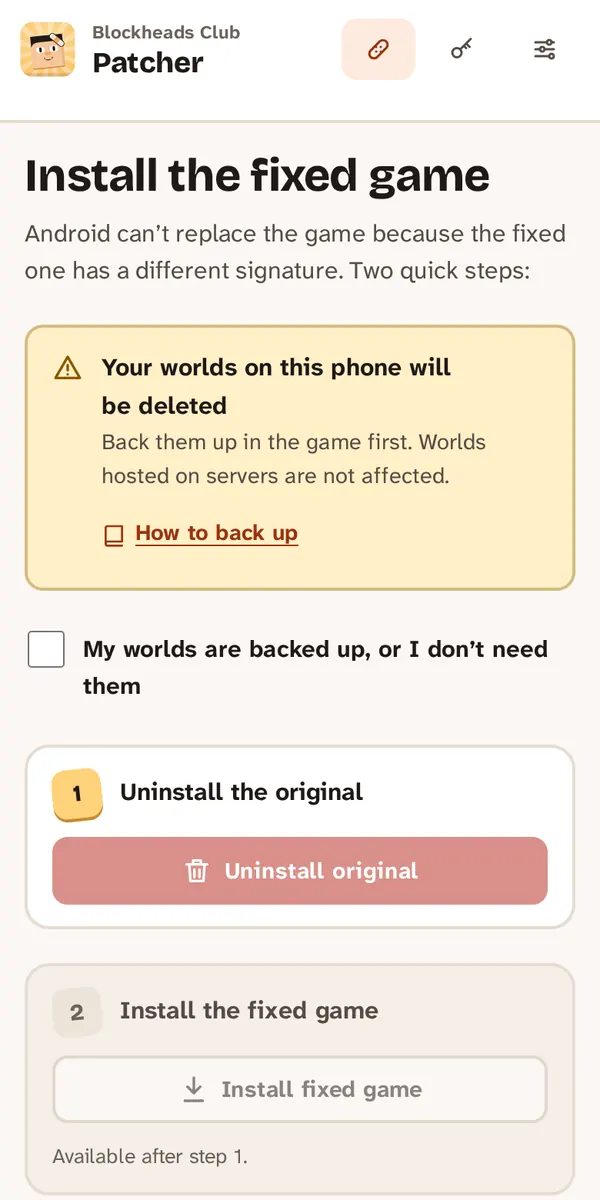
Tick the box only when your worlds are backed up.
4. Restore after installing
When the fixed game is installed, open it and restore your worlds from your backup.
TIP
The fix Offer to keep game data when uninstalling is on by default. With it, Android 10 and newer ask whether to keep the game’s data if you ever uninstall the fixed game.
5. Skip this next time
Keep your signing key. If you patch again with the same key, the update installs over your fixed game and your worlds stay. Keep your signing key safe
If something goes wrong
- Not sure a world is saved? Back it up again — it only takes a moment.
- Questions? Ask on GitHub.