Blockheads PC
Blockheads PC runs your own copy of the Android game on your computer. It works on Windows, macOS and Linux, on both normal (x86_64) and ARM (arm64) machines.
Early version
The Blockheads PC is new. Most of the game works, but expect a few rough edges. Please report problems you find.
Download and install
Get the latest version from the releases page. Pick the file for your system:
| System | File |
|---|---|
| Linux | .AppImage, .deb or .rpm (amd64/x86_64 or arm64/aarch64) |
| Windows | _x64-setup.exe or _x64_en-US.msi (arm64 for ARM PCs) |
| macOS (Intel) | _x64.dmg |
| macOS (Apple Silicon) | _aarch64.dmg |
Linux
- AppImage (any distribution): make it executable and run it.sh
chmod +x Blockheads*.AppImage ./Blockheads*.AppImage - Debian, Ubuntu:
sudo apt install ./Blockheads*.deb - Fedora, openSUSE:
sudo dnf install ./Blockheads*.rpm
Windows
Run the setup.exe (installs for your user, no admin needed) or the .msi.
"Windows protected your PC"
The installer is not code-signed yet, so SmartScreen may warn you. Click More info, then Run anyway.
macOS
Open the .dmg, accept the licence and drag Blockheads PC to Applications.
"Blockheads PC cannot be opened"
The app is not notarized by Apple. The first time, right-click the app and choose Open. Or go to System Settings → Privacy & Security and click Open Anyway.
First start: your game file
When you start Blockheads PC for the first time, a short setup guides you through it:
- Welcome – confirm that you own the game and will only use your own copy.
- Game file – choose or drop your APK.
- Window & graphics – window size and picture options.
- Controls – check the mouse and keyboard keys.
- Import saves – optional: copy the game’s save folder from your phone (or a zip backup) and pick it here.
- Ready – a summary. Press Play.
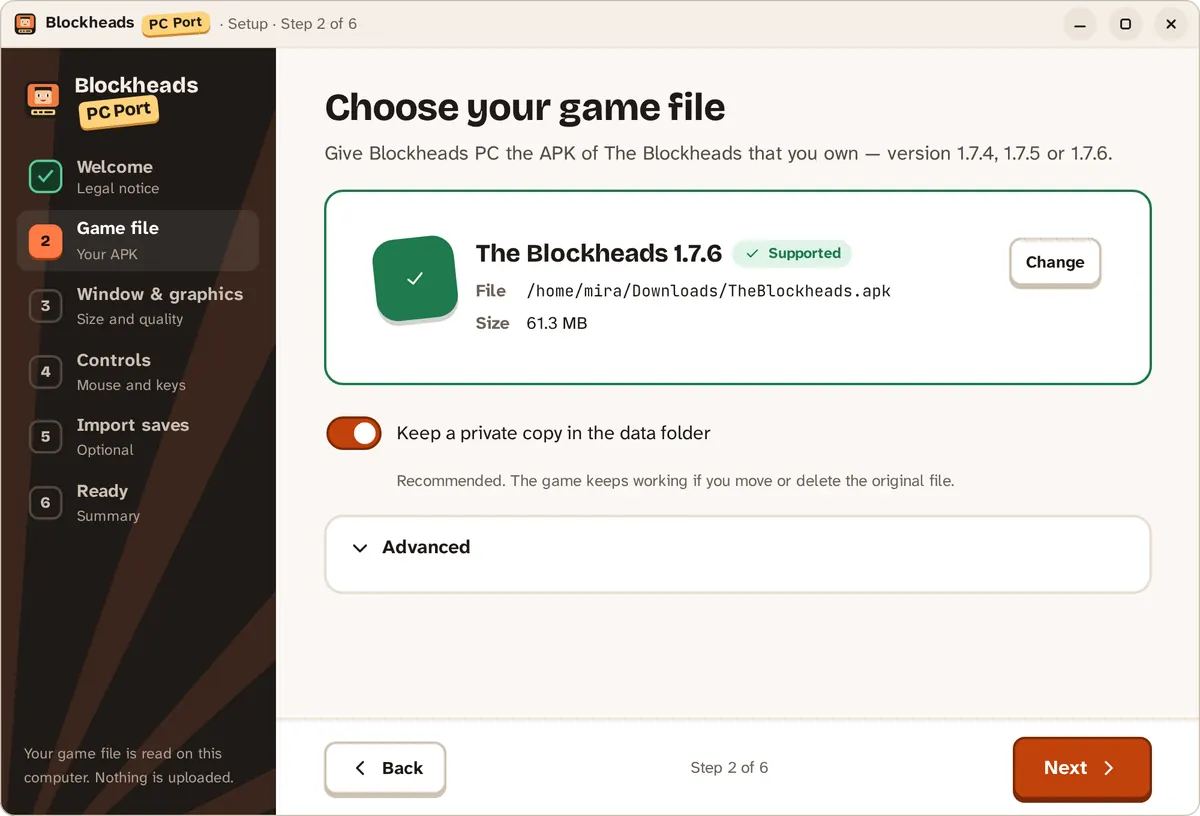
Setup step 2: pick your own APK. The launcher checks the version.
You can change everything later in Settings.
Your own APK
Blockheads PC needs the APK of The Blockheads that you own, version 1.7.4, 1.7.5 or 1.7.6. Copy it from your phone to your computer, then pick it in the setup. We never download or share the game.
- Leave Keep a private copy on (recommended). The game then keeps working if you move or delete the original file.
- Other versions or modified APKs can be tried under Advanced → Allow unknown builds. They may not start.
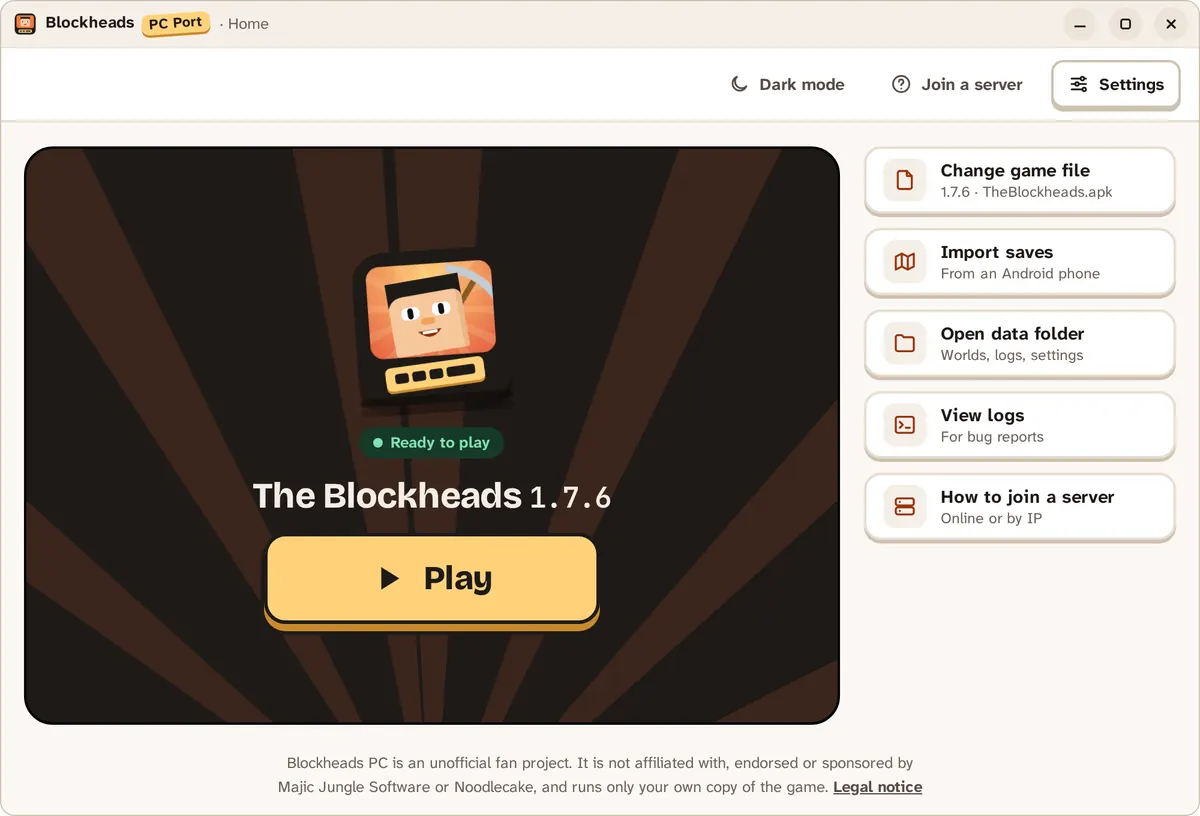
The Home screen after setup.
Settings
| Section | What you can change |
|---|---|
| Game & data | Your game file and the data folder with your worlds |
| Window & graphics | Window size or fullscreen, VSync, FPS limit, FPS counter, game UI scale, game speed |
| Controls | Mouse and keyboard bindings, game controller, on-screen D-pad |
| Audio | Sound on or off (the volume is set inside the game) |
| Language & theme | Language, light or dark |
| Updates & about | Version, updates and licences |
Graphics and FPS
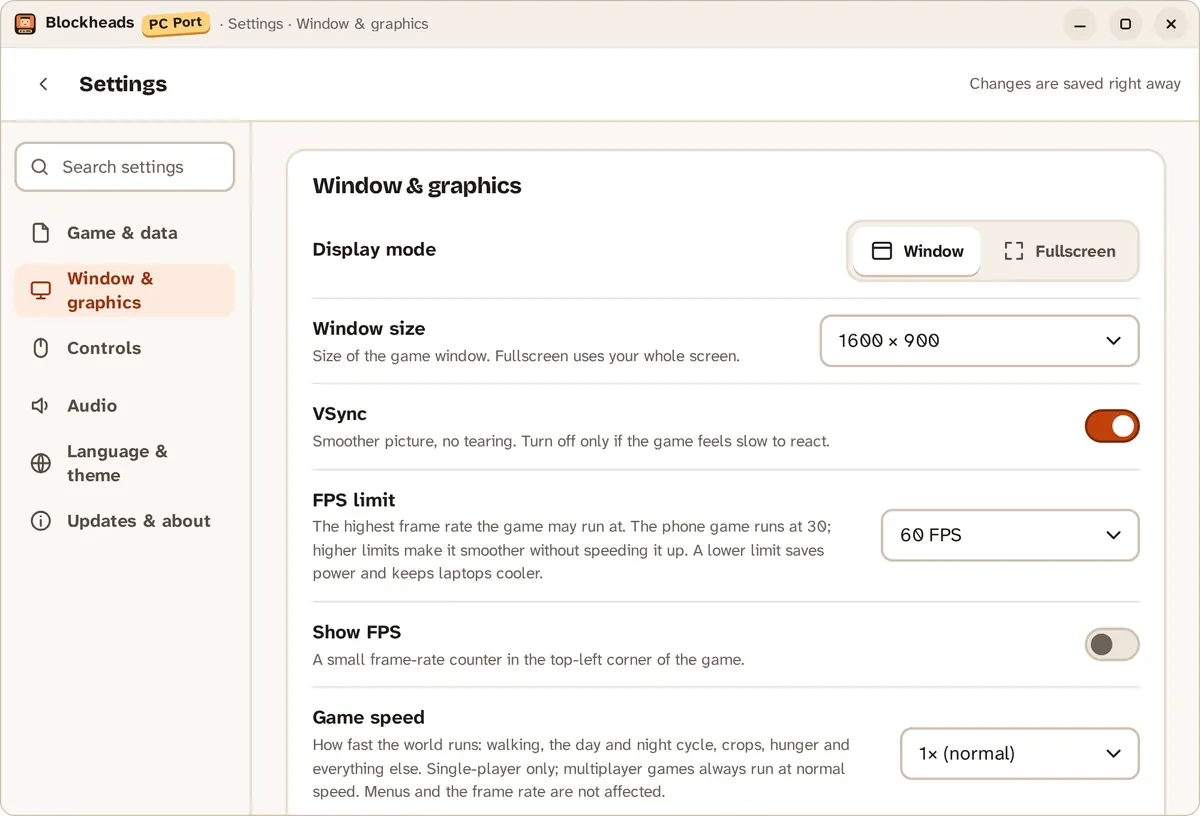
Settings → Window & graphics.
- Fullscreen: turn it on in Settings, or press F11 while playing.
- VSync: a smoother picture without tearing. Turn it off only if the game feels slow to react.
- FPS limit: the highest frame rate. The phone game runs at 30 FPS; a higher limit is smoother but does not speed the game up. A lower limit saves power and keeps laptops cooler.
- Show FPS: a small frame-rate counter. You can choose its corner.
- Game UI scale: makes the buttons and text inside the game bigger or smaller.
Game speed
Makes the world run faster: walking, day and night, crops, hunger and everything else. It works in single-player only; multiplayer games always run at normal speed.
Controls
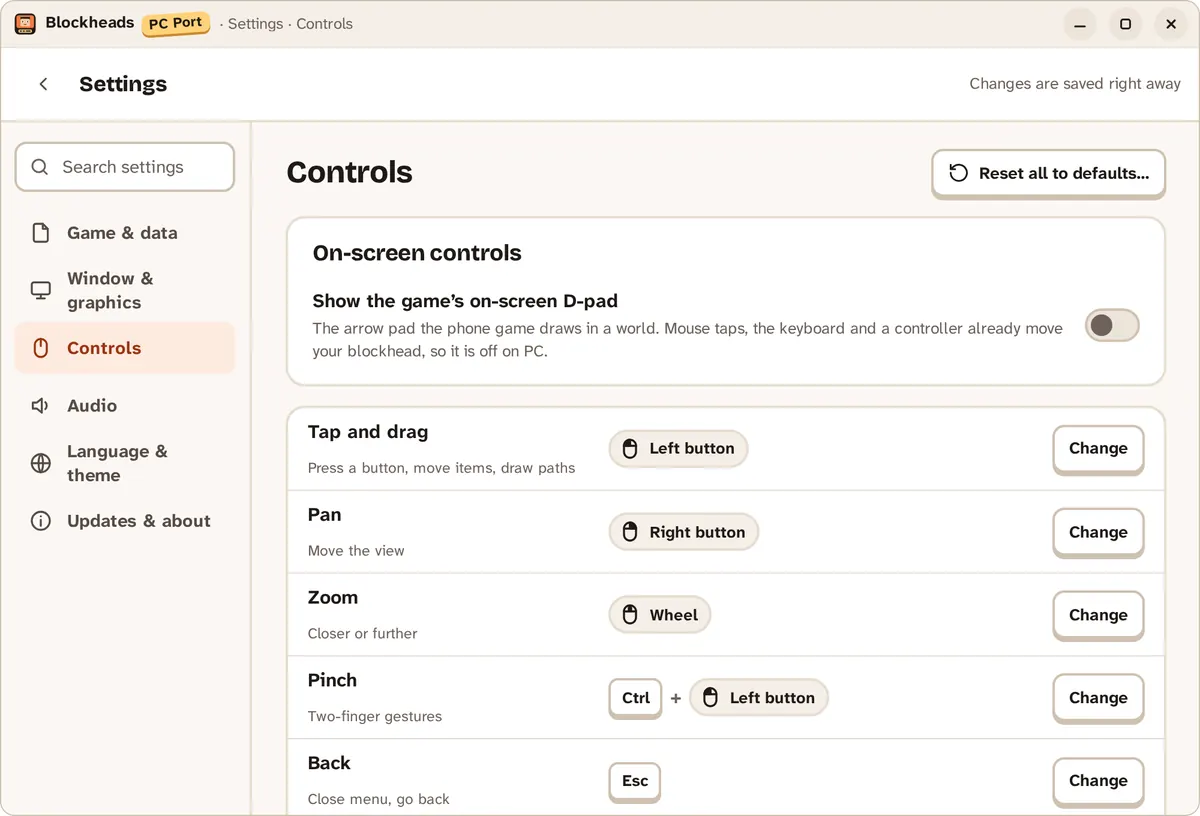
Settings → Controls: change any binding.
The game was made for touch, so your mouse plays the role of your finger:
| Mouse / key | Does |
|---|---|
| Left button | Tap and drag (hold for a long press) |
| Right button drag | Move the view |
| Mouse wheel | Zoom in and out |
| Esc | Back |
| F11 | Fullscreen on or off |
| H | Hide or show the game’s buttons |
You can change any of these under Settings → Controls, or reset them to the defaults.
Game controller
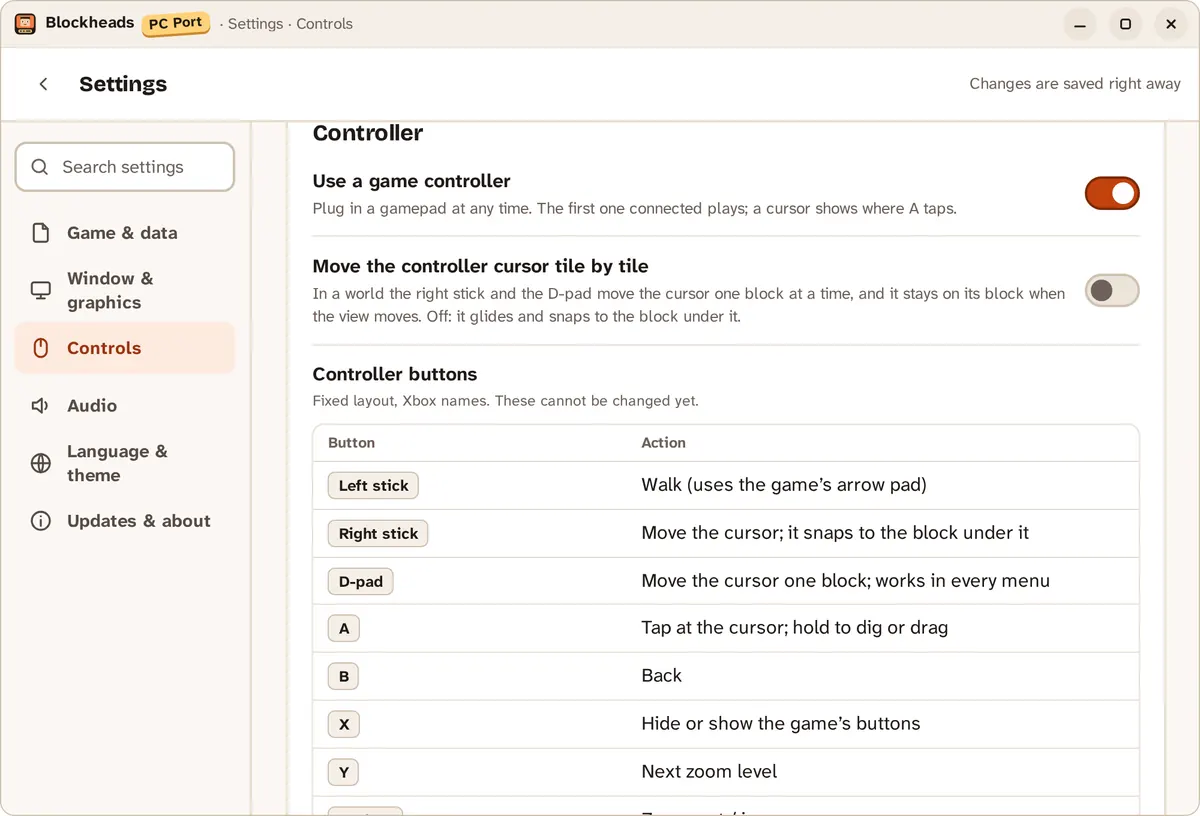
The controller section lists what every button does.
Plug in a gamepad at any time; the first one connected plays. A cursor shows where A taps.
| Button | Does |
|---|---|
| Left stick | Walk |
| Right stick | Move the cursor |
| D-pad | Move the cursor one block, also in menus |
| A | Tap; hold to dig or drag |
| B | Back |
| X | Hide or show the game’s buttons |
| Y | Next zoom level |
| LB / RB | Zoom out / in |
| Start | Pause menu |
Turn on Move the controller cursor tile by tile if you prefer the cursor to jump from block to block.
On-screen D-pad
The phone game draws an arrow pad in a world. On PC it is hidden, because the mouse, keyboard and controller already move your blockhead. Turn on Show the game’s on-screen D-pad if you want it back.
Playing online
You can join servers just like on a phone. To join by address: Join World → Advanced… → Online IP/Port…, enter the address and port, then Join Online World. See Server.
Troubleshooting
- The first start is slow. Loading the game takes a few seconds, longer the first time. A loading screen shows the progress.
- "This isn’t The Blockheads" / "This build isn’t supported". Pick the APK of The Blockheads, version 1.7.4, 1.7.5 or 1.7.6.
- "The file is damaged". The copy did not finish. Copy the APK from your phone again.
- "We can’t find your game file". You moved or deleted it and no private copy was kept. Choose it again; your worlds are not affected.
- The game closed unexpectedly. A log is saved. Use Report on GitHub on the Home screen, or open the logs with View logs, and send them with your bug report.
- The game feels slow. Busy scenes can run slower than on a phone. Close other heavy programs and keep your graphics drivers up to date.
- Windows or macOS blocks the app. See the tips in Download and install.
- Where are my worlds? Use Open data folder on the Home screen.