
Play with friends on the same Wi-Fi
Start a server on a computer at home and let every phone on your Wi-Fi join the same world. It takes about four minutes.
What you need
- A Windows, macOS or Linux computer on the same Wi-Fi as the phones
- Blockheads Server — the desktop app or the command-line server (downloads)
- The Blockheads on every phone. On modern Android, fix the game first
1. Start a server
Desktop app: open Worlds, tap Create world, give it a name and tap Start server.
Command line: unpack the download for your computer and create a world. The server starts right away:
# Linux / macOS, in the unpacked folder
./blockheads_server --new MYWORLD
# Windows (PowerShell)
.\blockheads_server.exe --new MYWORLD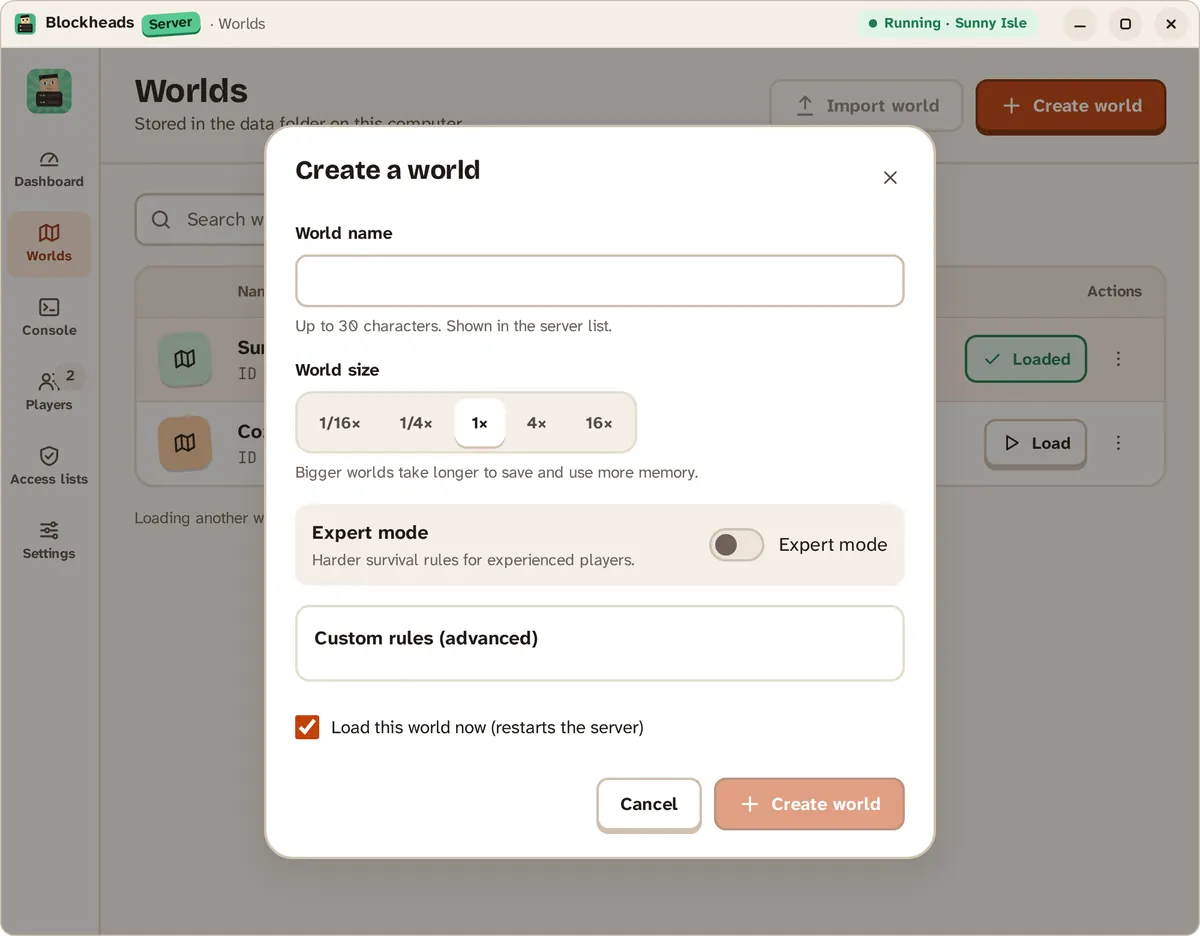
Create a world: a name, a size and, if you like, expert mode.
TIP
Stop the command-line server with /stop. Ctrl + C closes it without a final save.
2. Let it through the firewall
The server uses UDP port 15151. When Windows Firewall asks, allow access on private networks. On other systems, allow incoming UDP on port 15151 if you use a firewall.
3. Find the server’s address
In the desktop app, the Dashboard has a Connect from a phone card with the LAN address, the port and a QR code. Scan the code with a phone camera to copy the address.
On the command line, look up your computer’s local IP address in its network settings, for example 192.168.1.42.
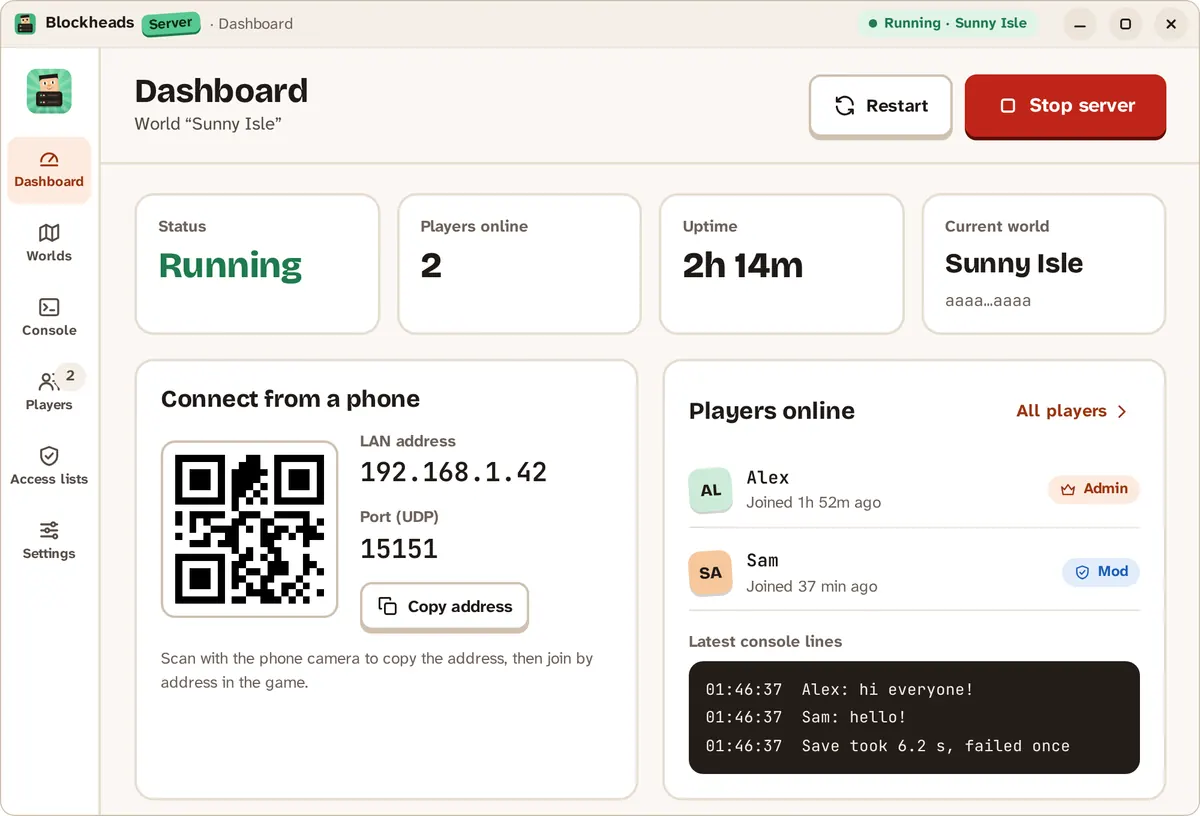
The dashboard shows the LAN address, the port and a QR code.
4. Join from the game
On each phone, open the game and go to:
- Join World → Advanced... → Online IP/Port...
- Enter the address and the port (the field already says
15151) - Tap Join Online World
TIP
If the server has a password, the game asks for it.
If something goes wrong
- Nobody can connect — check that the phones are on the same Wi-Fi (not a guest network) and that the firewall allows UDP 15151.
- One friend is refused — if the whitelist has names in it, only those names can join. See Admins, mods and bans.
- Still stuck? Open an issue on GitHub and paste the server log.