
Open your server to the internet
Let friends outside your home join your world. You will lock the server first, then forward one port on your router.
What you need
- A server that already works on your Wi-Fi (LAN guide)
- Access to your router’s settings page
1. Lock the server first
Set a password: in the app under Settings → Password (up to 15 characters), or with /set-password in the console.
Or turn on the whitelist by adding names: in the app under Access lists → Whitelist, or with /whitelist. As soon as the whitelist has names, only those players can join.
# in the server console
/set-password secret123
/whitelist friendname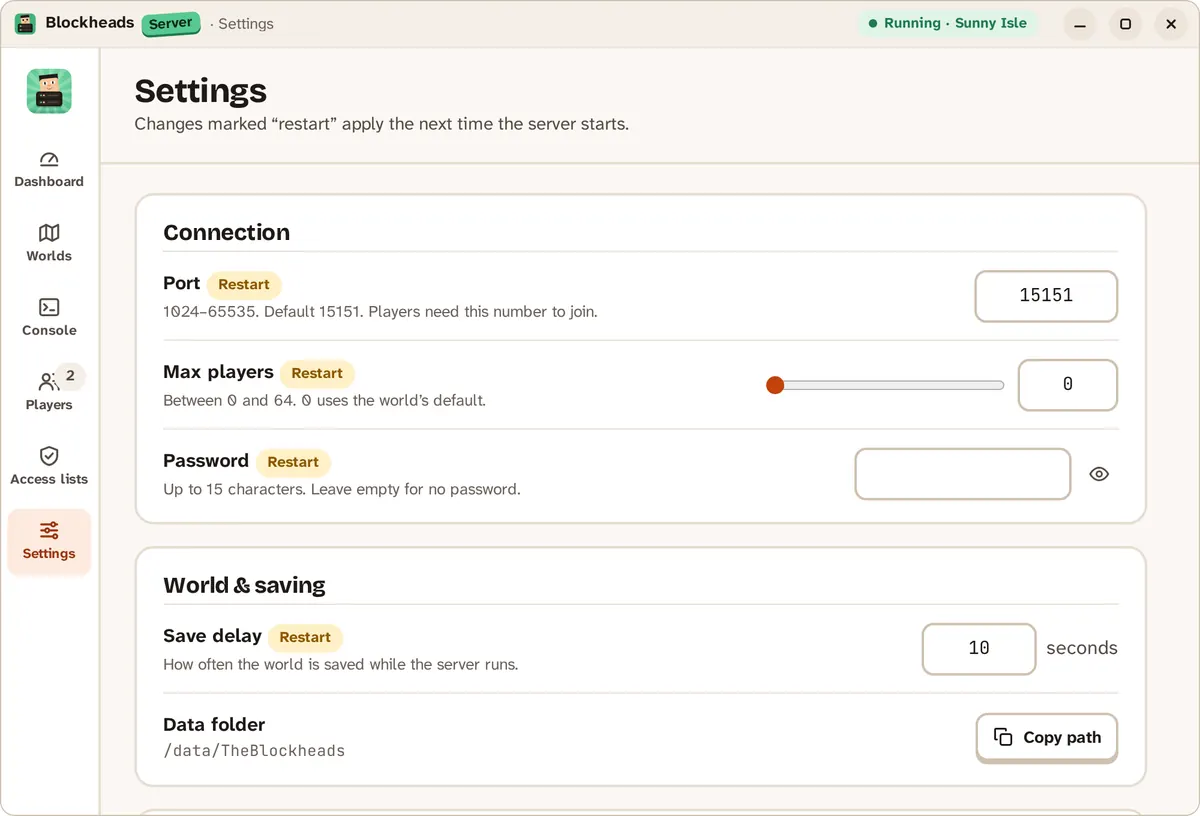
The password is under Settings → Connection.
2. Give the server a fixed address
In your router, reserve the server computer’s local IP address (often called DHCP reservation), so it doesn’t change after a restart.
3. Forward the port
In the router’s port forwarding page, forward UDP port 15151 to the server computer’s local address. If you changed the port, use yours.
4. Share your public address
Look up your public IP address and send it to your friends with the port. They join with Join World → Advanced... → Online IP/Port....
WARNING
Your public IP shows roughly where you are. Share it only with people you trust.
If something goes wrong
- Works at home, not outside — the router’s internet address may differ from your public IP (some providers share one address between customers). Then port forwarding can’t work; ask your provider.
- Still blocked — check the firewall on the server computer allows UDP 15151.
- Need help? Open an issue on GitHub.